
Overview of the error:
You may receive the following error message when you try to log on to your Windows 2016 or, 2019 or, 2025 server:
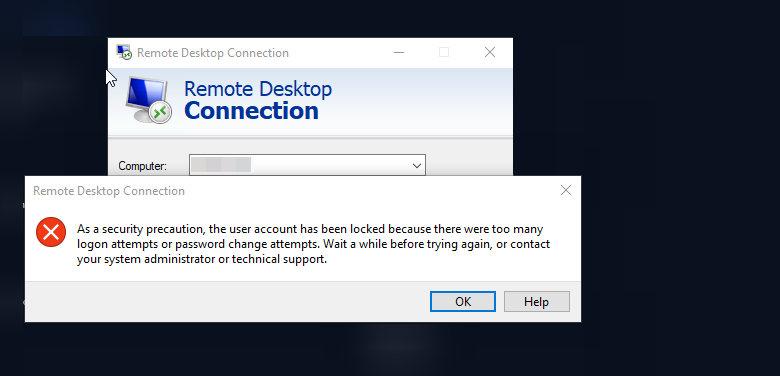
Follow the steps below or go to the following group policy setting in your Windows server,
Step 1: Navigate to Group Policy Editor under Settings
Access the Control Center,
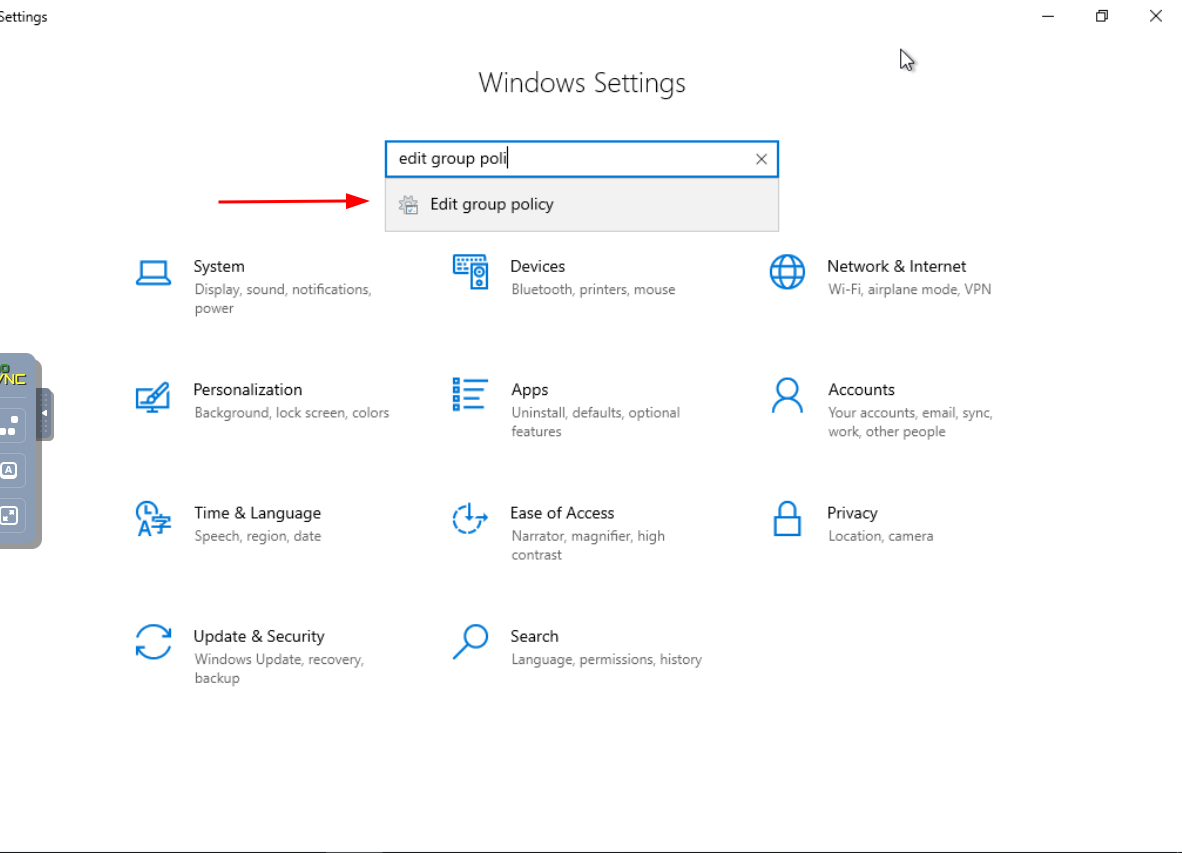
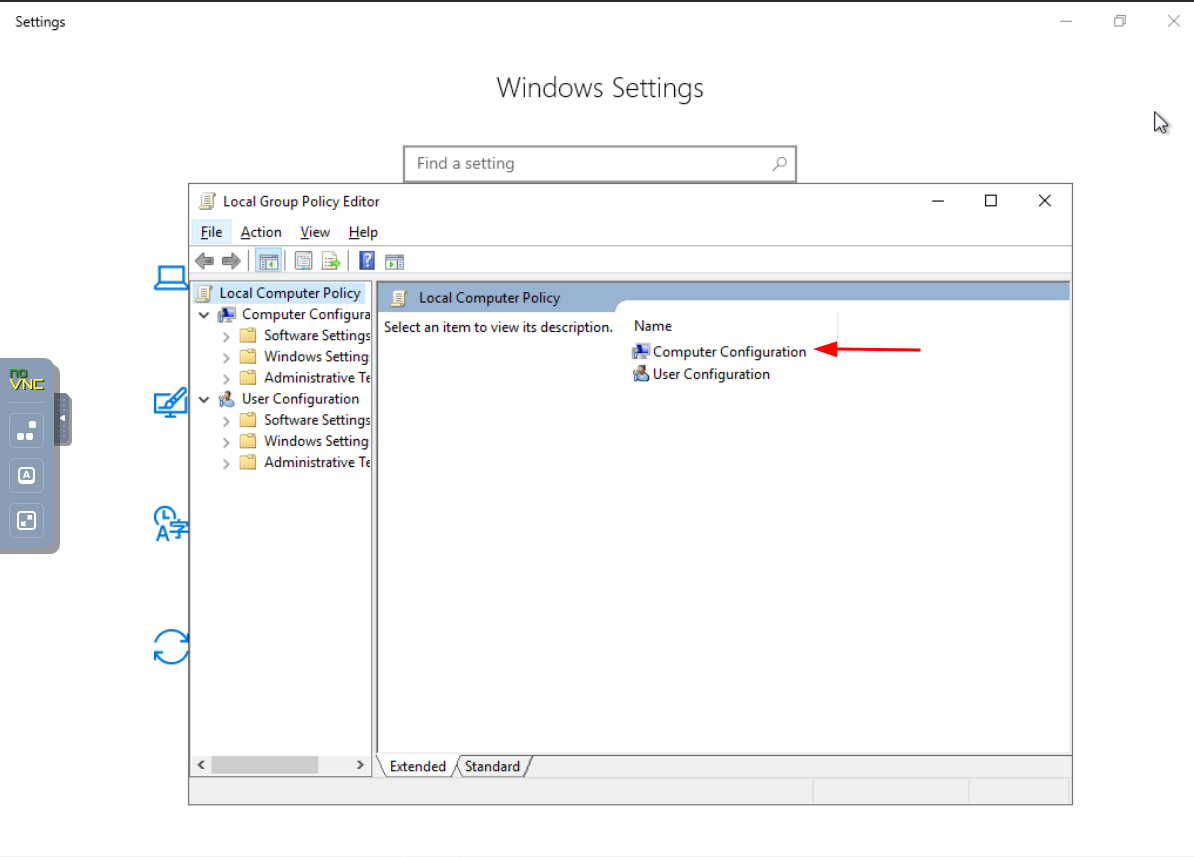
Step 2: Locate Computer Configuration
Dive into Computer Configuration to customize fundamental settings at the heart of your system.
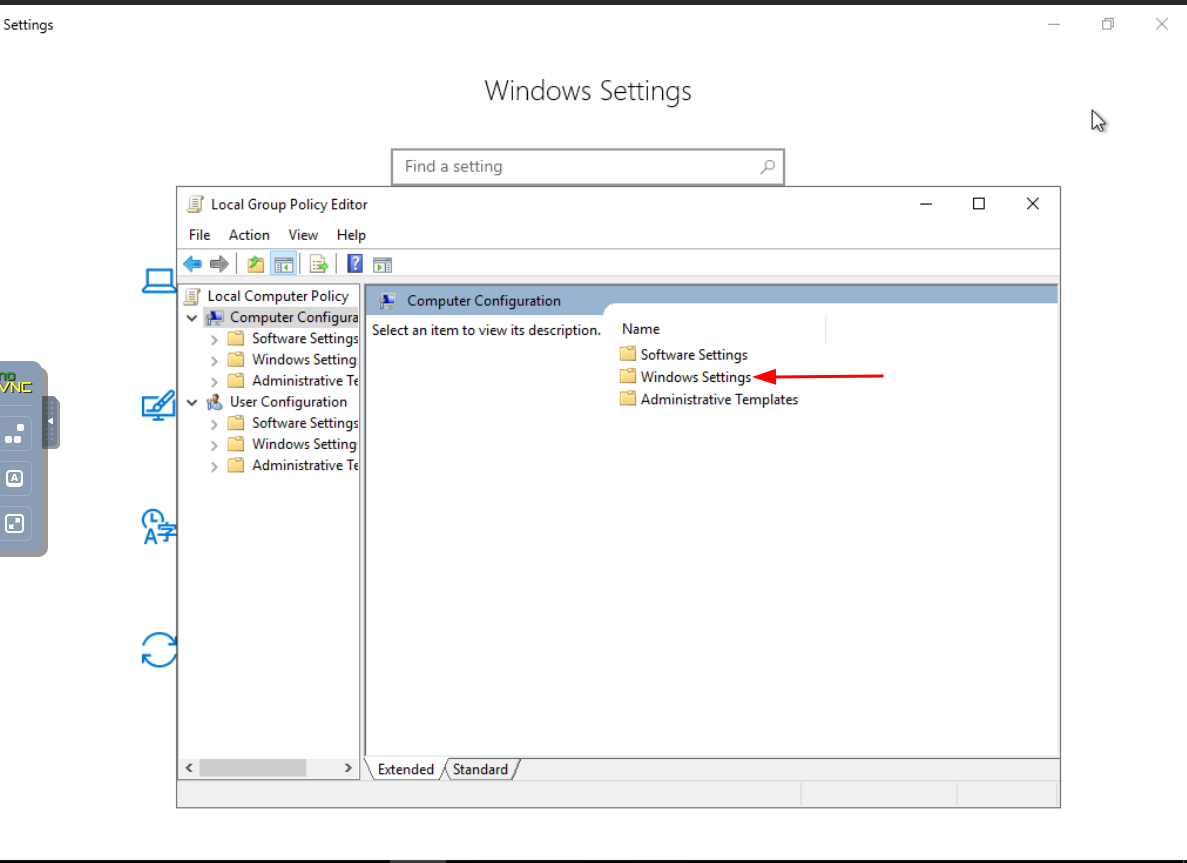
Step 3: Navigate to Windows Settings
Explore the Windows Settings section to fine-tune configurations specific to the operating system.
Step 4: Access Security Settings
Enhance your system's security posture by navigating to and configuring Security Settings.
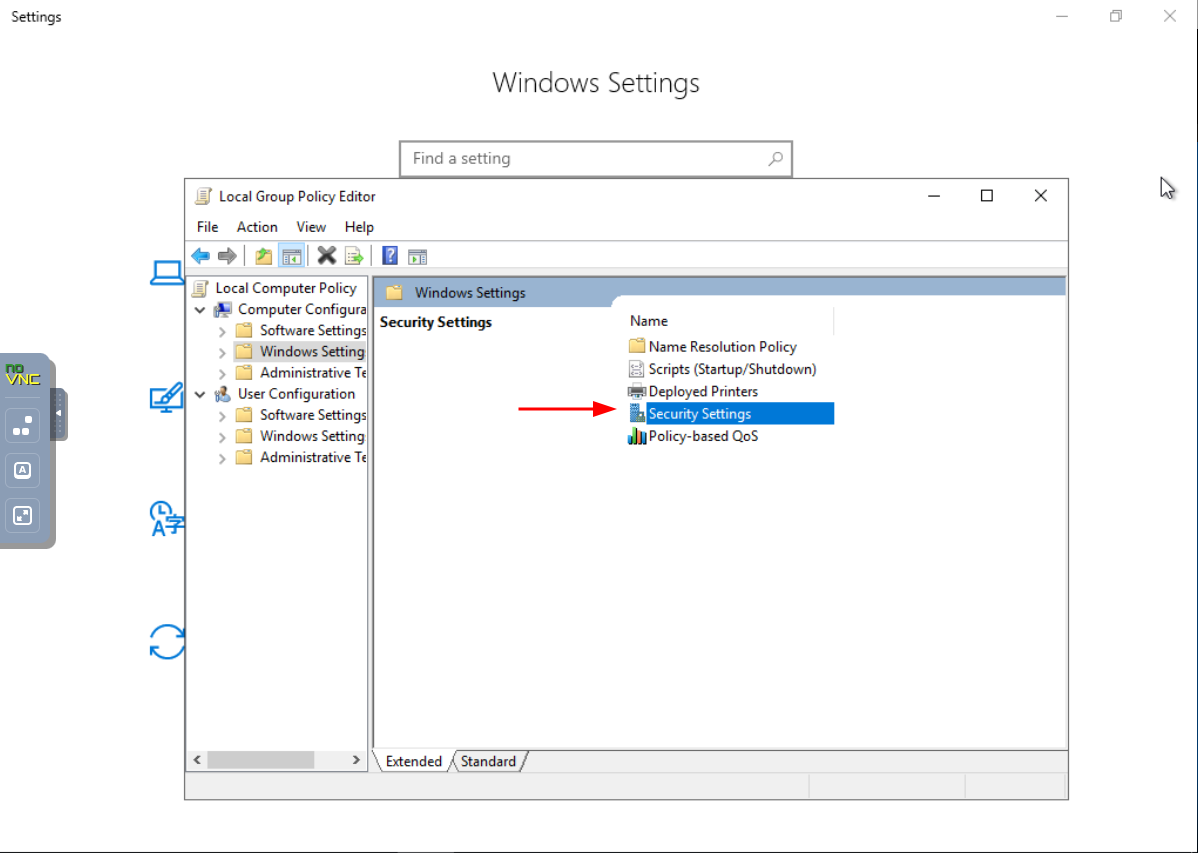
Step 5: Find Account Policies
Locate and customize Account Policies to dictate the rules governing user accounts on your system.
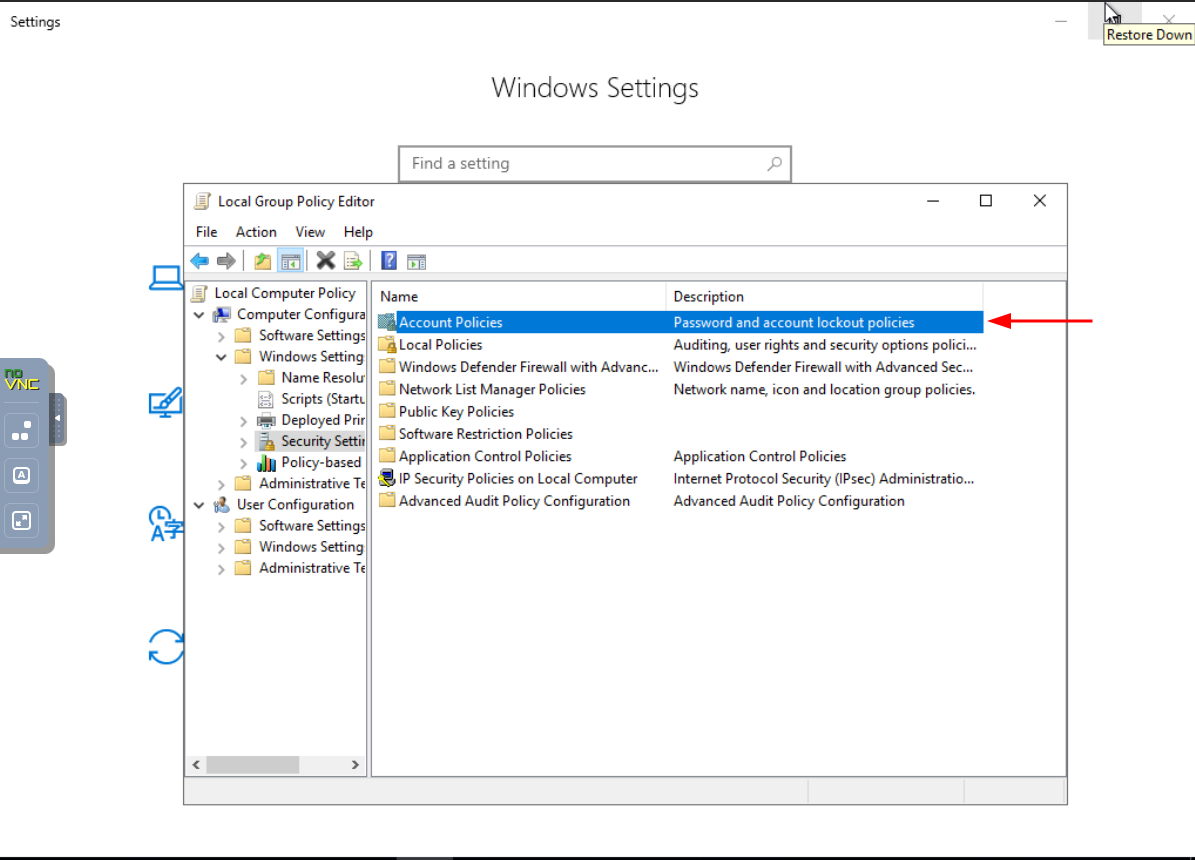
Step 6: Explore the Account Lockout Policy
Delve into Account Lockout Policy to establish protocols for handling account lockouts.
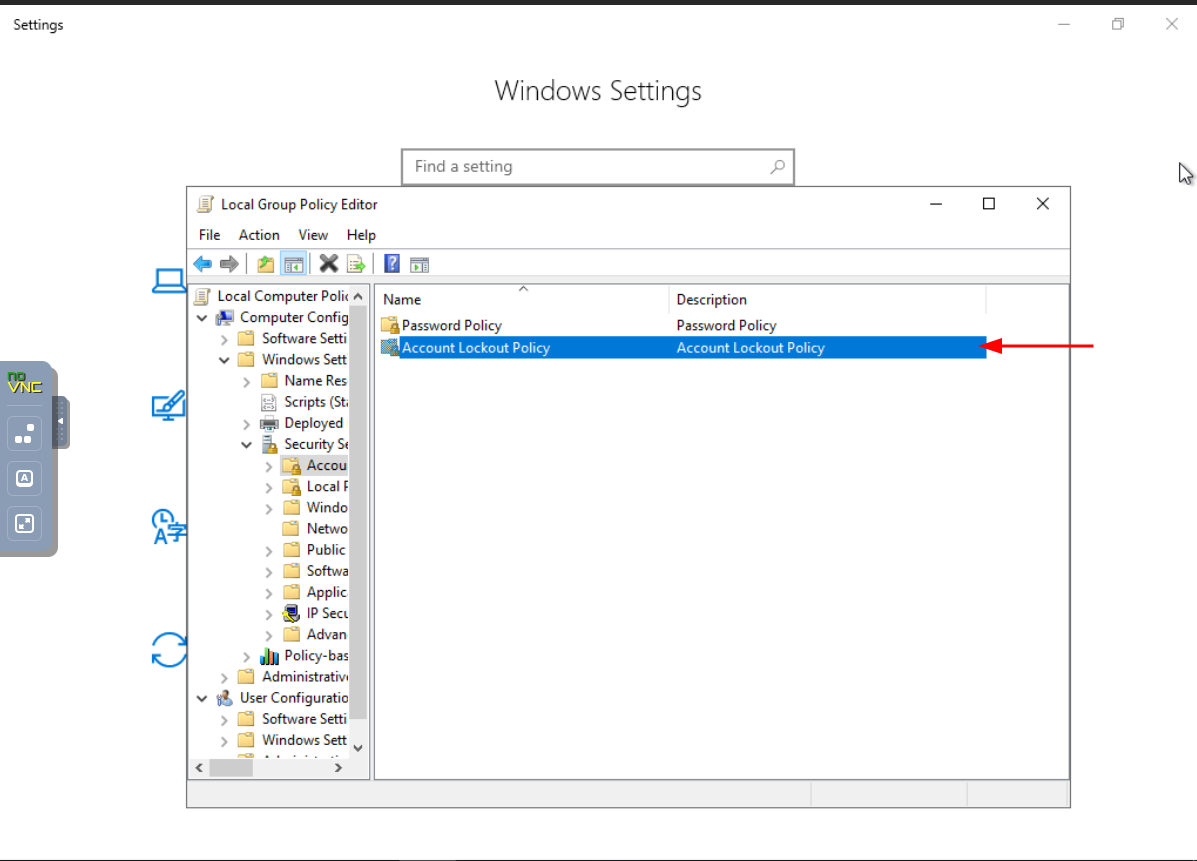
Step 7: Adjust Account Lockout Threshold
Fine-tune the Account Lockout Threshold to strike a balance between security and user accessibility.
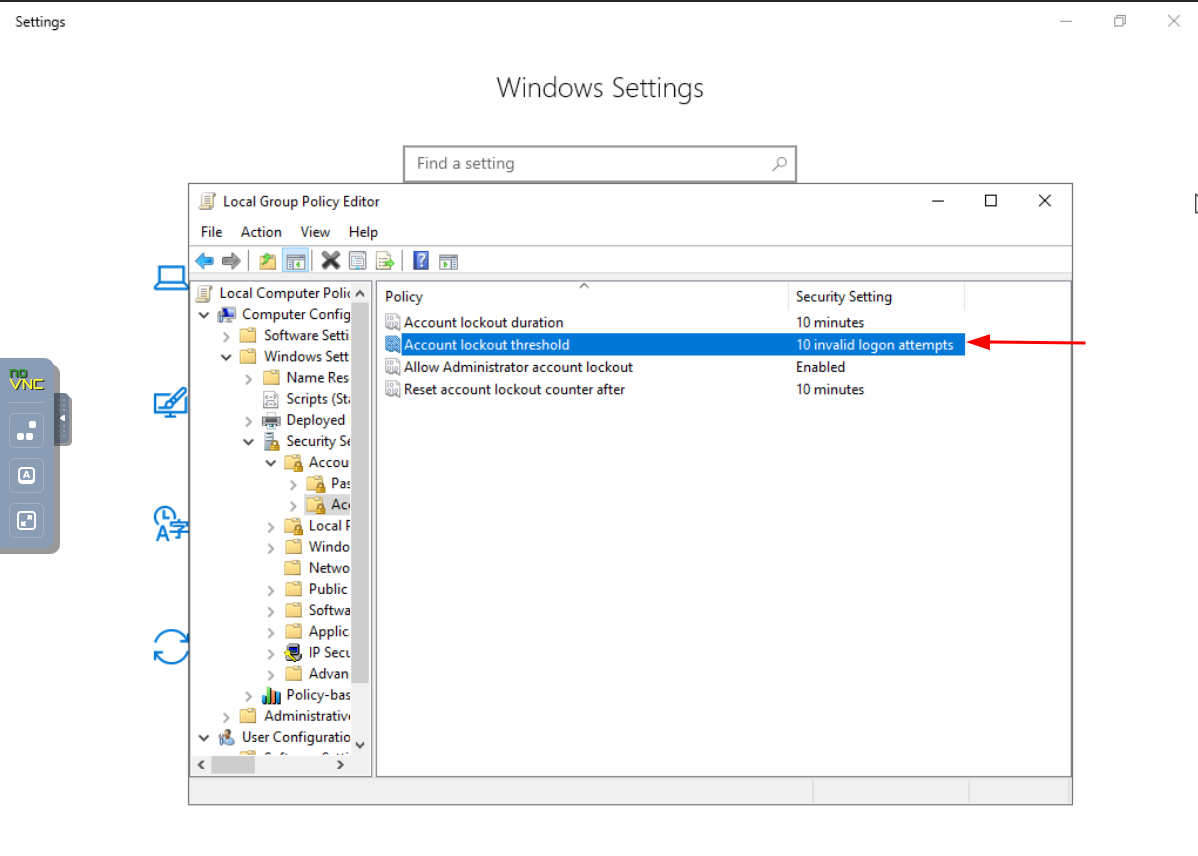
Double click on secelected filed and make it 0 value.
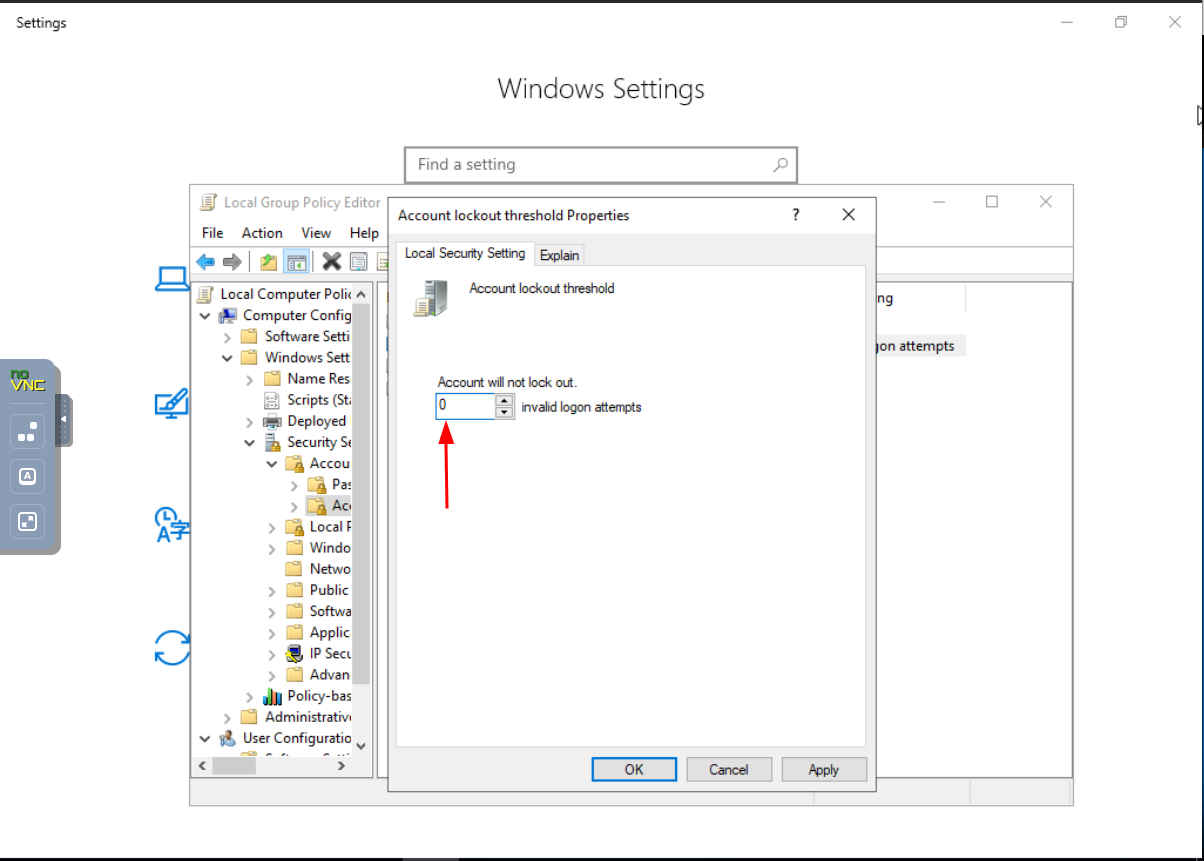
- If you want to turn off the lockout function completely you can set the number above to 0, or you can just raise the number of invalid login attempts to trigger a lockout to be higher.
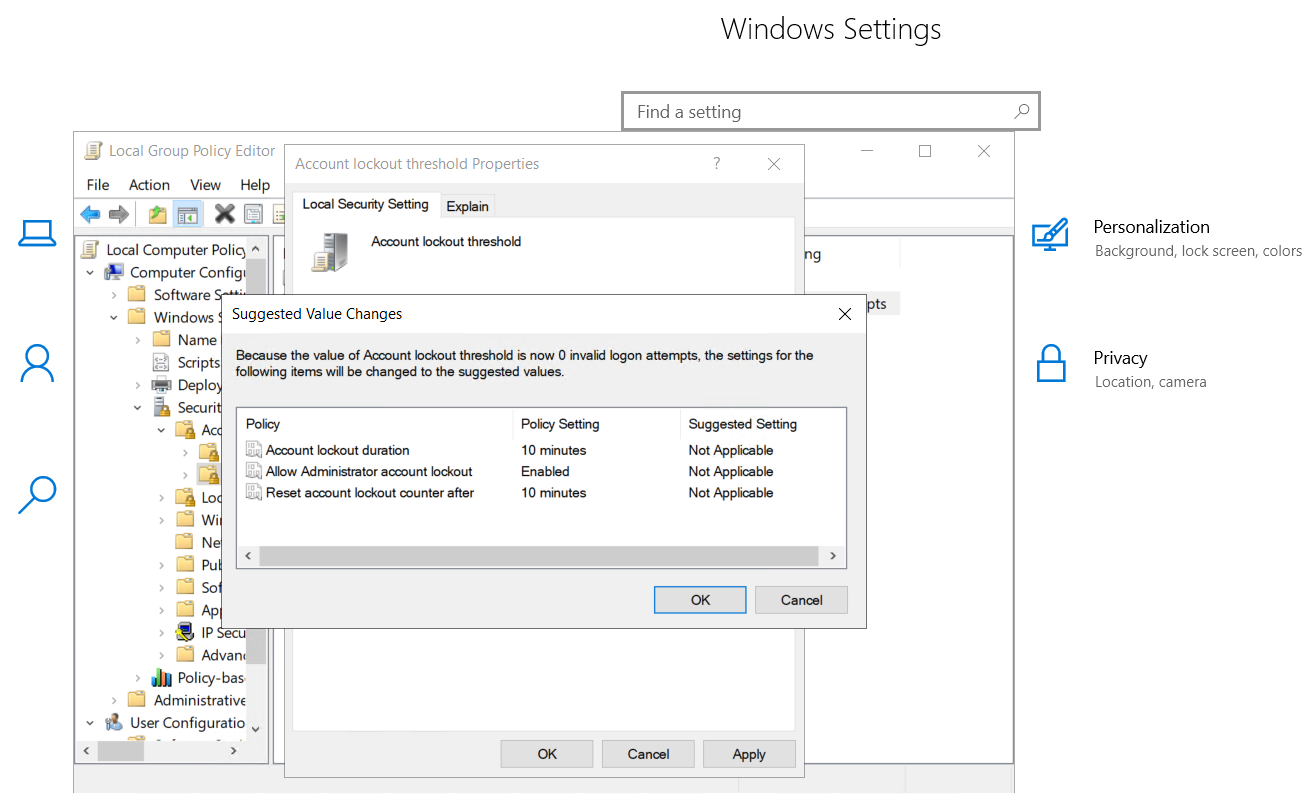
- Once you're done click the "Apply" button and then the "OK" button.