
At Western Datacenter, we prioritize your security. Occasionally, due to the technical nature of our automated server delivery emails (which contain IP addresses and login credentials), Google’s security filters may mistakenly flag our emails as "Suspicious" or move them to the Spam folder.
If you see a red warning label stating "This message might be dangerous," please follow these simple steps to restore full access to the email content and ensure future communications reach your Inbox.
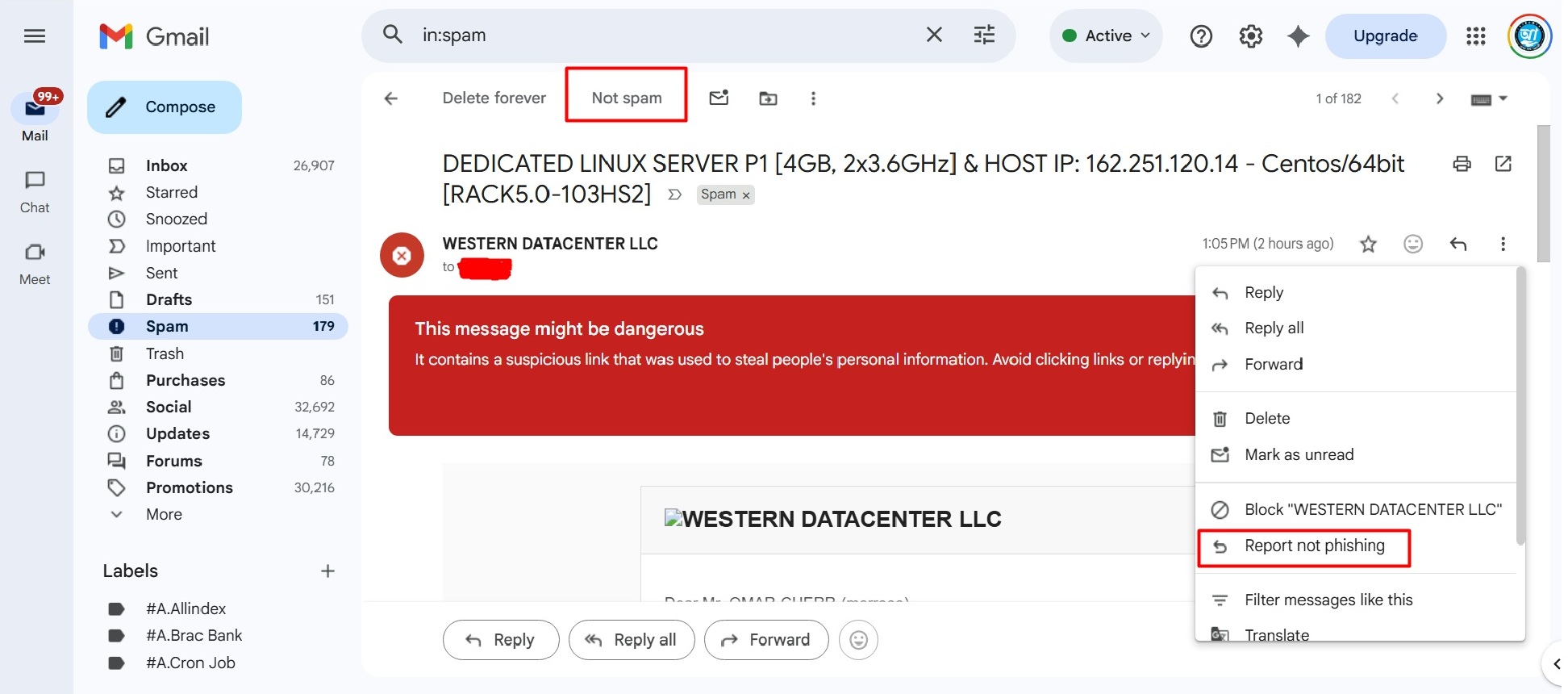
Step 1: Mark as Safe (Report Not Phishing)
When an email is in the Spam folder, Gmail disables links and attachments for your protection. To re-enable them:
-
Open the email from your Spam folder.
-
Click on the three vertical dots (More) icon located at the top right of the message.
-
Select "Report not phishing" from the dropdown menu.
-
Additionally, click the "Not spam" button at the top of the email.
Step 2: Add Us to Your Contacts
The most effective way to signal to Google that a sender is trusted is by adding them to your address book.
-
Please add our official support email (e.g.,
[email protected]) to your Google Contacts.
Step 3: Create a "Never Send to Spam" Filter
To guarantee that you never miss a critical server update or invoice, we recommend setting up a simple filter:
-
In the Gmail search bar, type our domain:
westerndatacenter.com -
Click the Show search options icon (the sliders icon) on the right side of the search bar.
-
Click Create filter.
-
Check the box: "Never send it to Spam".
-
Click Create filter again to confirm.
Why does this happen?
Our delivery emails often include sensitive technical data such as Dedicated IP addresses, Root passwords, and SSH ports. Automated security algorithms sometimes misinterpret this technical data as a "Phishing" attempt. By following the steps above, you are manually verifying that Western Datacenter is a trusted source.
Once you mark the email as "Not Phishing," the red warning will disappear, and all links (such as your Control Panel login) will become active.
If you continue to experience issues receiving our emails, please reach out to our 24/7 support team via the Client Portal.